
Alerts overview
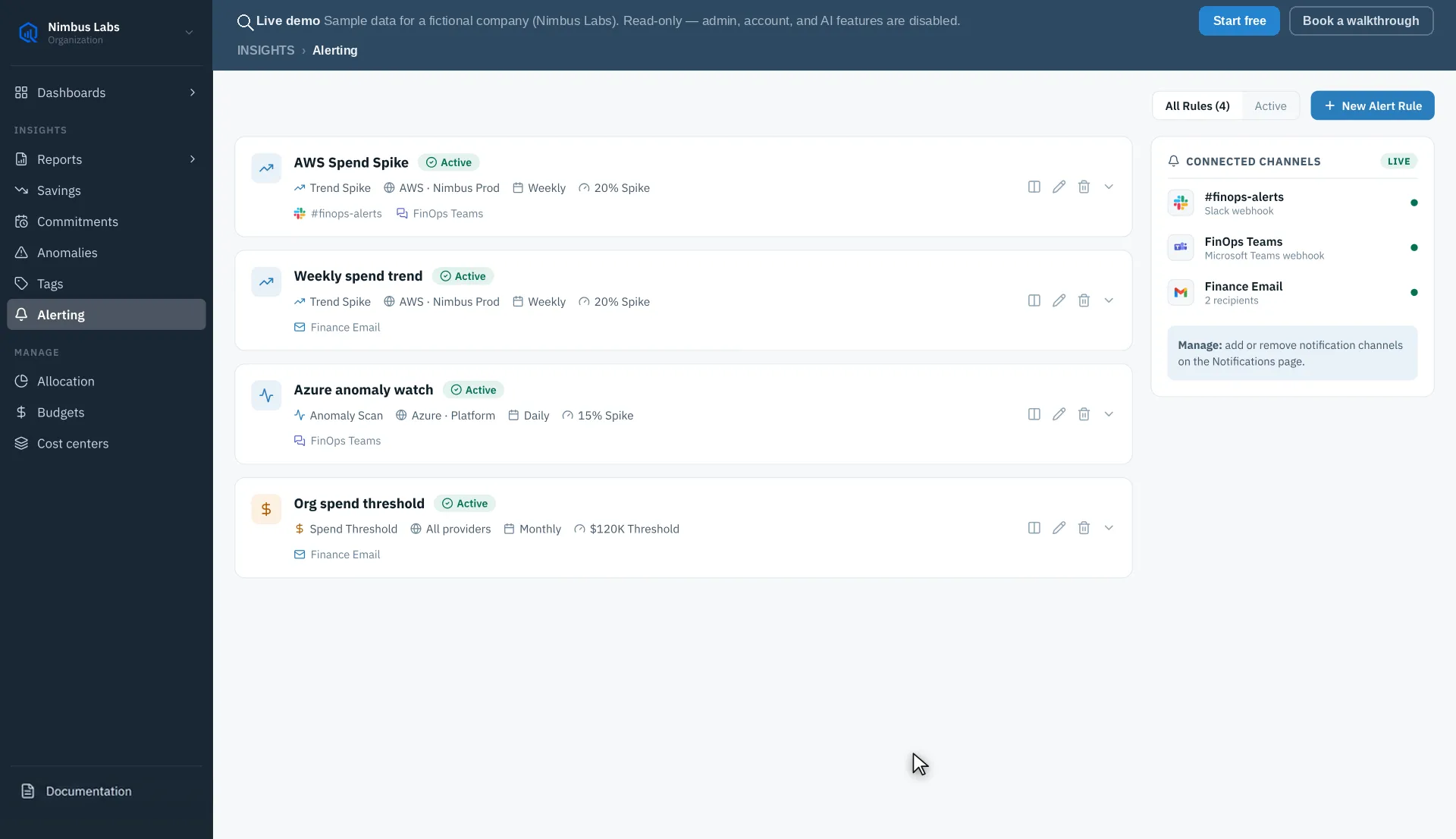
Alerts notify your team the moment cloud spend does something you care about — passing a spending limit, trending upward faster than usual, an anomaly surfacing, or a commitment nearing expiry. Instead of checking the dashboard, you find out where you already work: email, Slack, or Microsoft Teams.
What can trigger an alert
Section titled “What can trigger an alert”CloudQuell watches for four kinds of conditions:
- Trend — spend climbs abnormally over a chosen cadence.
- Anomaly — an unexpected month-over-month spike surfaces. See Anomalies overview.
- Budget — spend passes a fixed dollar amount you set for the rule’s scope. This is a standalone threshold on raw spend, not tied to a budget you’ve defined.
- Commitment expiry — a reservation or Savings Plan comes within a set number of days of expiring.
Both cost-rule firings and budget-threshold crossings feed a single firing history, so you have one place to see everything that has recently triggered.
A rule can watch your entire organization — combined spend across every connected provider — or be pinned to a single integration. Within that target you can focus it further on specific services, accounts, or a tag key and value, or leave it broad. Scoping keeps alerts signal-rich rather than noisy.
How alerts reach you
Section titled “How alerts reach you”Every alert is delivered to its recipients: one or more notification channels, plus up to five email addresses added directly to the rule. Create a channel once, choose it on any rule, and firings are routed to it. Supported channel types are email, Slack, and Microsoft Teams, and a single rule can deliver to all three at once. See Notification channels.
Next steps
Section titled “Next steps”- Alert rules — define the conditions to watch and review firing history.
- Notification channels — set up and test where alerts land.